Introduction
The purpose of this article is to walk through a couple of basic troubleshooting steps for the pingStation 3.
Before You Begin
- Confirm the pingStation 3 is running the latest firmware.
- Follow the section that matches your issue:
- No power → Section 1
- No ADS-B traffic to the API → Section 2
- First-time installation problem → Go to the bottom of this page, click Submit Ticket under the Support header and include a detailed description, screenshots, and photos.
Section 1: pingStation 3 Appears to Have No Power
- Check the PoE injector or network switch port that the pingStation 3 is connected to.
- Look for two LEDs (Power/Activity and Link).
- Both LEDs should be on or flashing (colors may vary by device).
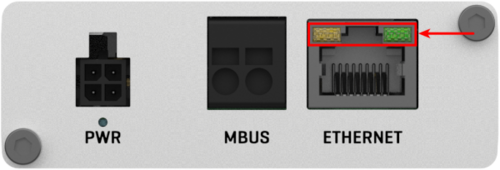
- Locate the pingStation 3’s IP address using Advanced IP Scanner.
- Type 04:71 in the search box. Only a pingStation 3 should appear.
- If multiple pingStation 3s are on the network, verify the MAC address on the device before continuing.
- Open a web browser and try to reach the unit’s IP address (example: http://192.168.2.128).
- You should see the Landing/Configuration page.
- If any of the three steps above failed:
- Remove the pingStation 3 from its installation location.
- Place it near a window.
- Connect it using only the M12 PoE cable → PoE injector → CAT6 cable → network port.
- Repeat steps 1–3.
- Evaluate the result:
- If it now works → Inspect the rest of the original installation for issues.
- If it still does not work → Go to the bottom of this page, click Submit Ticket under the Support header. Include the exact issue, the steps you performed, and a detailed description of the installation (with photos if possible).
Section 2: ADS-B Traffic Is Not Being Received by the API
- Open the pingStation 3 landing page in a browser (use the IP address found earlier).
- Look at the Health section of the page.
- Compare it to a properly functioning unit (reference image of healthy status below).
- If the Health section looks normal:
- In the browser address bar, add /reset to the end of the IP address (example: http://192.168.2.128/reset) and press Enter.
- The unit will reset.
- Wait several minutes for the landing page to reappear.
- If it does not return, delete /reset from the address and press Enter again.
- After the reset completes, check your API.
- If traffic still does not appear, the issue may be with the API itself.
- If the Health section does not look normal (pictured below), or the reset in step 3 did not resolve the problem:
- Try the same /reset procedure described above.
- If the problem continues, go to the bottom of this page, click Submit Ticket under the Support header. Include the troubleshooting steps performed, screenshots of the Health section, and a detailed description of the installation (with photos if possible).
- If the Health section appears as it does below, click Submit Ticket under the Support header. Include the troubleshooting steps performed, screenshots of the Health section, and a detailed description of the installation (with photos if possible).
Comments
0 comments
Please sign in to leave a comment.